Can you use speech to text in Excel?
Yes. On Windows, place the insertion point in an editable cell or the formula bar and press Windows key + H. On a Mac, enable Dictation, place the insertion point where you want the text, then use the Microphone key or your configured Dictation shortcut.
Microsoft's current app-specific Dictate guidance does not present an Excel-specific Dictate workflow. In Excel, operating-system speech recognition is the broadly available route. The result is text entry into the location you selected—not automatic record or field selection.
How to use speech to text in Excel
The exact controls come from your operating system. In every case, first make sure Excel is ready to accept text in the place you intend to edit.
Windows 11
Use Windows Voice Typing
- 1Select the cell you want to edit, then enter edit mode or click in the formula bar so a text cursor is visible.
- 2Press Windows logo key + H to open Voice Typing.
- 3Wait until Windows shows that it is listening, then speak the value or note you want entered.
- 4Review the transcription in Excel and stop Voice Typing from its microphone control when finished.
macOS
Use macOS Dictation
- 1Open System Settings, choose Keyboard, then turn Dictation on if it is not already enabled.
- 2In Excel, place the insertion point in the cell or formula bar where you want text.
- 3Press the Microphone key, use your configured Dictation shortcut, or choose Edit → Start Dictation.
- 4Speak, review the result, then press Escape, the Microphone key, or your shortcut to stop.
Browser-based
Use speech to text in Excel for the web
Excel for the web can receive text from the same operating-system tools. Open the workbook, put a cell into edit mode so the insertion point is visible, then use Windows key + H on Windows or your macOS Dictation shortcut on a Mac.
If speech appears in another browser text field but not in the selected cell, try editing through the formula bar. Browser behavior can vary with operating-system version, language, workbook permissions, and organization policy. This is system dictation being used inside the browser—not an Excel-specific browser voice command system.
Native dictation is useful when you already know the destination
If you have selected the correct cell, ordinary speech to text can be a convenient way to enter a short note, label, description, or individual value. It is especially useful when typing is awkward but you can still navigate the workbook manually.
That is not a fully hands-free workflow. Dictation replaces typing, but not pointing and navigation: before each entry, you still need to select the destination cell and then move to the next one.
Short notes
Dictate a comment into the cell you already selected.
One value at a time
Speak a value, review it, then move to the next cell.
Text correction
Use supported voice commands or the keyboard to fix transcription.
Dictation hears words. It does not resolve spreadsheet intent.
A spreadsheet is more than a text surface. It contains records identified by IDs, fields defined by headers, and rules about which value belongs where. Native dictation does not automatically turn a sentence about those records into validated cell updates.
Once the workbook and worksheet are selected and Listening Mode is active, Lucy can support a hands-free data-entry session. You name the record and fields in the instruction, and Lucy resolves the destination without requiring you to click into every cell.
Example instruction
“For sample B-204, set measurement to 17.8 and status to needs review.”
With ordinary dictation
The sentence is transcribed into the location you selected. You still choose the row, move between fields, and verify each value yourself.
With a structured update tool
The instruction can be interpreted as two updates, resolved against sample B-204, validated, and reported independently.
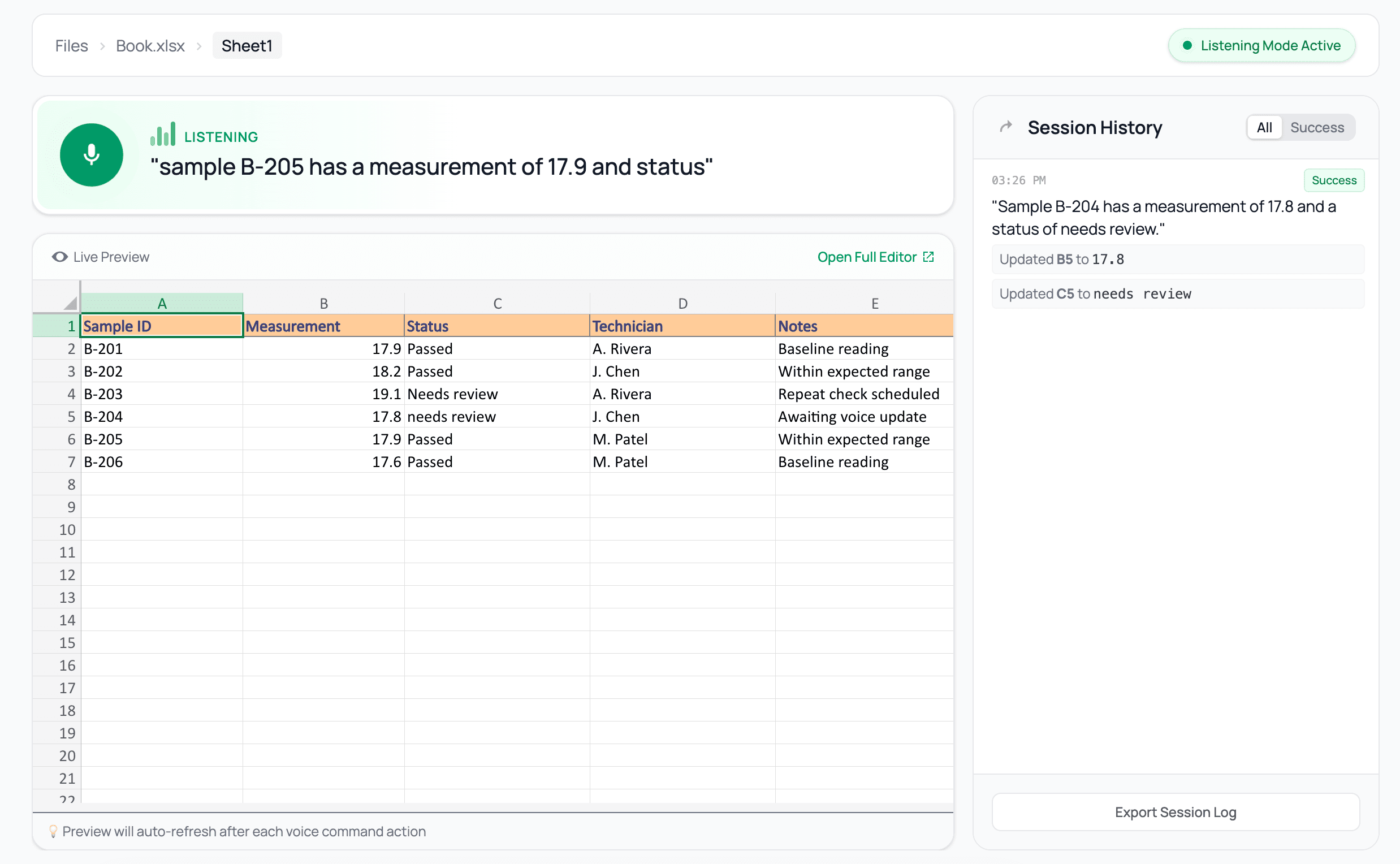
| Sample ID | Measurement | Status | Outcome |
|---|---|---|---|
| B-204 | 17.8 | Needs review | 2 updates applied |
Excel dictation versus structured voice updates
| Capability | Native dictation | Lucy |
|---|---|---|
| Where the text goes | Into the cell or field you already selected | To a record and field resolved from the spoken instruction |
| Multi-field instructions | Captured as text in one active location | Split into independent, validated spreadsheet updates |
| Hands-free operation | You still select and move between destination cells | After setup, Listening Mode accepts record-based updates without per-cell clicks |
| Ambiguous targets | You notice and correct the entry manually | The update can be skipped with a visible reason |
| Review | Review the text in the selected cell | Review the transcript and applied, skipped, or failed outcomes |
| Best suited to | Notes or one value in a cell you have already chosen | Repeated record-based updates where the destination matters |
Neither approach is universally better. Use native dictation when you have already chosen the cell and simply want to speak its content. Use a structured tool when the instruction itself needs to identify the record, field, and value safely—or when repeated updates need to remain hands-free after setup.
Speech to text in Excel FAQ
Does Excel have speech to text?
Excel can accept text entered through Windows Voice Typing or macOS Dictation. Microsoft currently documents dedicated Dictate experiences for several Microsoft 365 apps, but the practical native route in Excel is operating-system dictation while a cell or the formula bar is ready for text entry.
Can I use speech to text in Excel for the web?
Yes, you can generally use Windows Voice Typing or macOS Dictation while editing an Excel-for-the-web cell. Put the cell into edit mode so an insertion point is visible, then start the operating-system dictation tool. Exact behavior can vary by browser, operating-system version, language, and organization settings.
Can ordinary dictation update multiple Excel cells?
Not by understanding the structure of a spoken sentence. You can select cells one at a time and dictate each value, but ordinary dictation does not normally resolve a record identifier, choose several destination fields, and report each update independently.
Can Lucy update Excel hands-free?
Lucy can support a hands-free data-entry session once you have selected the workbook and worksheet and started Listening Mode. You can identify the record, fields, and values by voice instead of clicking into each destination cell. If an instruction is ambiguous, Lucy may skip it and ask you to review or rephrase it rather than guessing.
Is speech to text the same as text to speech in Excel?
No. Speech to text turns your voice into written text. Text to speech reads existing spreadsheet content aloud. They solve opposite sides of the interaction.
What happens when Lucy is not sure which record or field I mean?
Lucy is designed to avoid guessing silently. If an update cannot be mapped safely to a record and field, it can be skipped with a reason so you can correct the instruction or spreadsheet setup.
Official guidance reviewed for this article
- Microsoft Support: Use voice typing to talk instead of type on your PC
- Apple Support: Dictate messages and documents on Mac
- Microsoft Support: Dictate text using Speech Recognition
Operating-system and Microsoft 365 behavior can change, so platform-specific instructions should be checked periodically.